
Late in 2023, Google announced an upcoming feature enhancement that will allow Shared Drive content managers to share folders. This change gives users additional sharing permissions, which are on by default. The ability to share folders for content managers has been a highly requested feature.
Today, content managers can share individual files, and this change will make it much easier to share more significant amounts of content quickly. The expected release date is sometime this month, and Google will send out an additional post in February with details. Access to folder sharing for content managers takes the burden off of managers and speeds up the sharing process. Nothing is required to enable this feature. Once Google releases it, it’s on by default.
With this upcoming feature release, it is a great time to look at your Shared drive settings and decide if you want to allow content managers to share folders. You can disable this setting before the feature launches. This post will walk you through the steps to disable the setting. We are not recommending you disable this setting but rather encourage you to review it to ensure it aligns with your organization's content-sharing policies.
How to disable the Shared drive 'share folder' setting for content managers
Step 1:
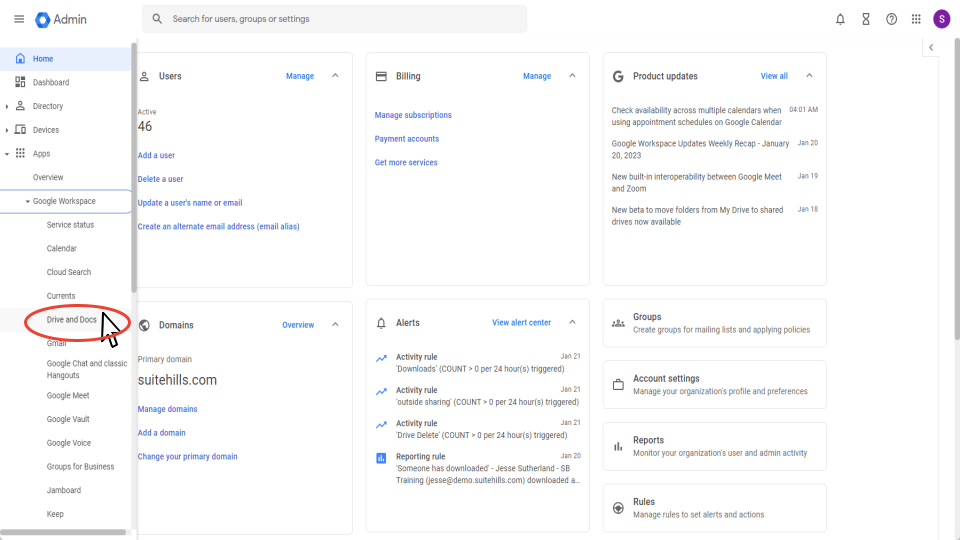
From the Admin console home page, select 'Drive and Docs' on the left-hand side.
Step 2:
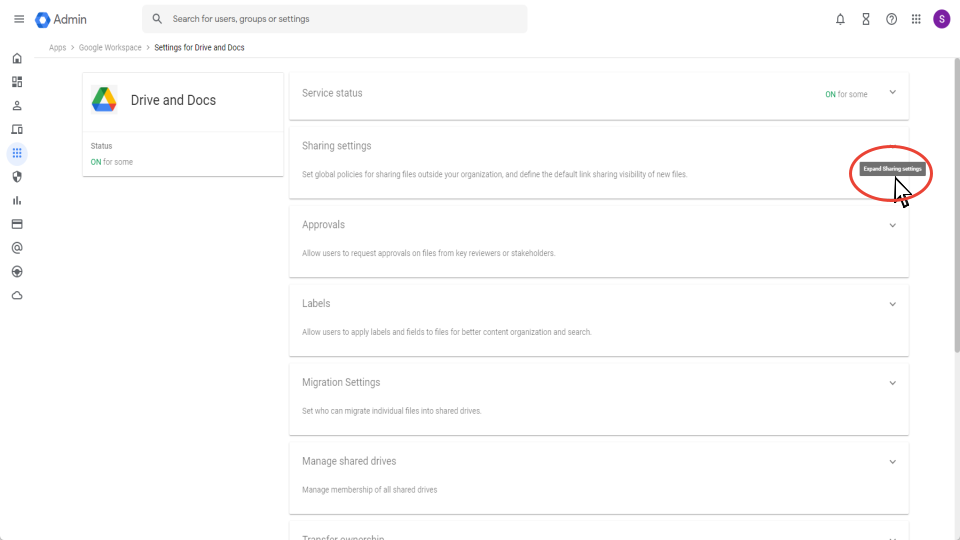
Now in the Drive and Docs settings, select 'Sharing settings' near the top.
Step 3:
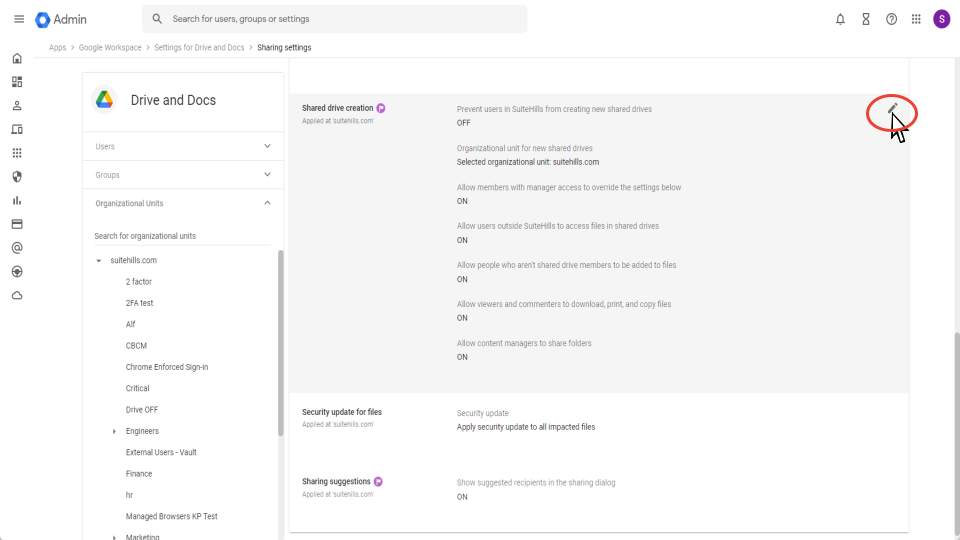
Scroll down until you get to the shred drive creation setting. At the top right, select the edit icon.
Step 4:
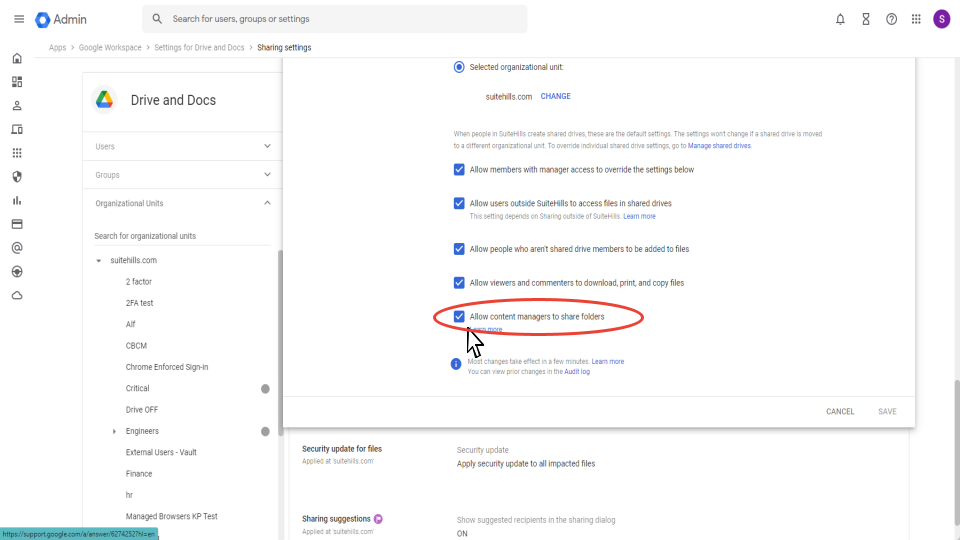
Towards the bottom, select the check mark next to - Allow content managers to share folders.
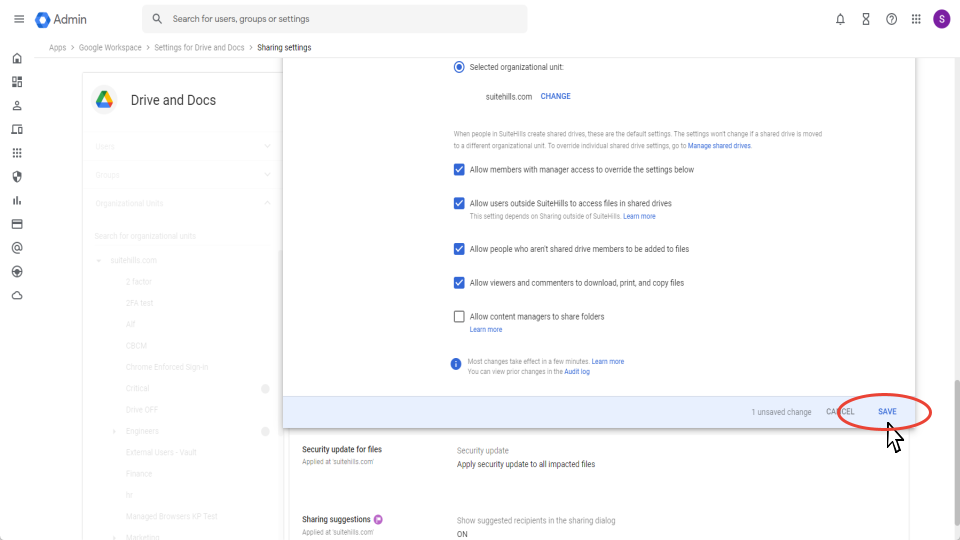
Step 5:
At the bottom right, select save. Now you have disabled the ability for content managers to share folders.
As a Google Cloud Partner, our seasoned team is available to help you update your content sharing settings in like with your organization's policy. Contact us today for assistance.